

Finding spare parts made easy.
Dear agria customer,
Welcome to the spare parts search help page on agria.de.
Here you will find step-by-step instructions and useful tips for finding the right spare parts and components for your agria machines. Find out how to make the best use of the search function and navigate through our detailed exploded views.
If you have any further questions, please contact our customer service team using the contact form.
Use our resources to make your search for spare parts efficient and stress-free.
Thank you for choosing agria.
Operation and navigation
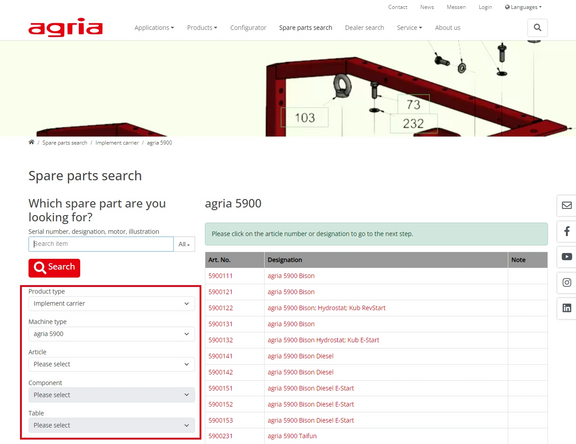
You can use the navigation bar to identify the basic implement, Implement or Accessories for which you require spare parts. To do this, click on the selection fields from above to below until you see the exploded view with the spare parts.
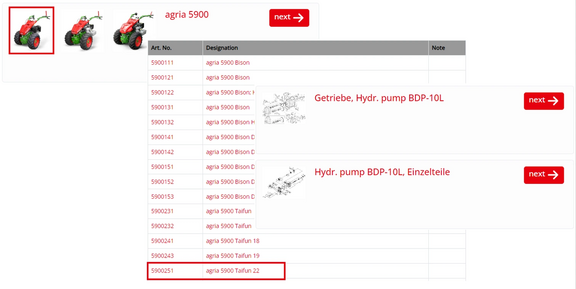
Alternatively, you can also click on the images and Next buttons on the right-hand side, or on a row in a table
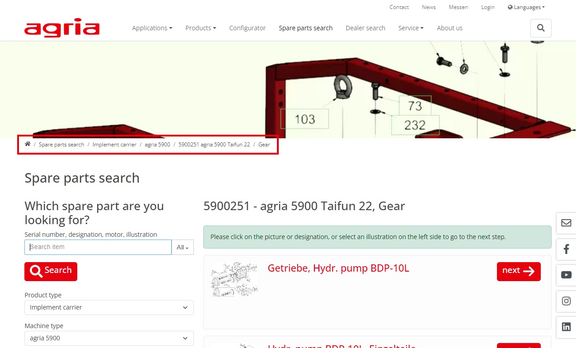
To go back one step, you can use the function of your Internet browser or the back buttons at the bottom of the respective page. If you would like to go back several steps, repeat the above function or click directly on the position in the navigation (breadcrumb) to which you would like to jump.
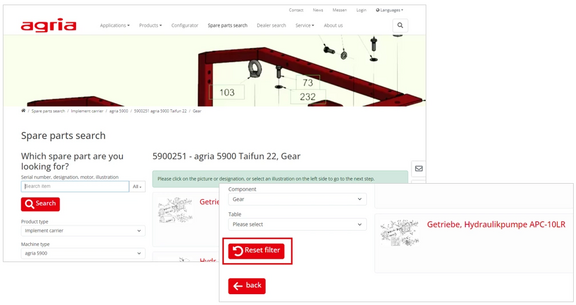
To go directly to the home page, click on "Spare parts search" in the navigation bar or on the "Reset filter" button.
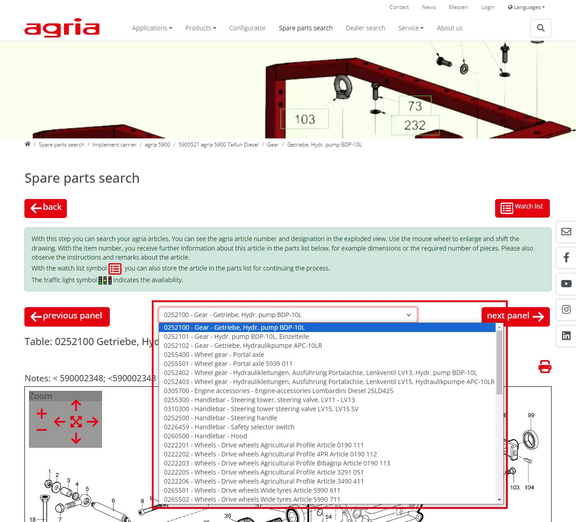
You can use the drop-down menu next to the panels to navigate conveniently to any assembly group without having to click through all the panels individually.
In the exploded view, you can move your mouse over the items to see the agria part number and designation of your spare part.
You can use the mouse wheel to zoom in and out of the drawing. To do this, please press the CTRL key on your keyboard at the same time.
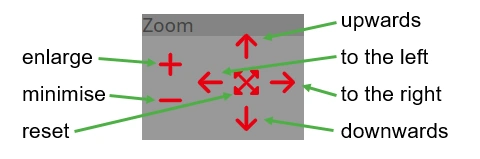
If you are using a tablet/smartphone with touch function or a device without a keyboard, you can navigate in the drawing using the "Zoom" toolbar
More symbols

Here you have the option of printing the current page with the drawing and the associated parts list.

By changing the language, you can also select a different language within the spare parts search. This is independent of the language you have selected for our homepage.
Availability
The traffic light symbols show you, for example, whether the items are currently available.


Search options
Search by serial number
Search by part number
Search by spare part number
Search by part number
Search by engine number
Search by plate number
Search by serial number (from year of manufacture 1997)
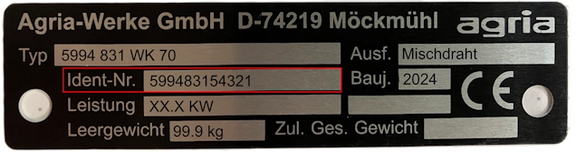
Note: from model year 2009, the serial number has 12 digits. The first 7 digits of the serial number correspond to the article number.
Search by article number
Where can I find the article number?
On the right side of the machine on a Decal or riveted Decal. The article number of Basic equipment, Implement and Accessories has 7 digits.
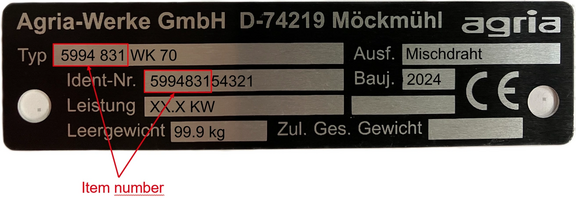
Search by spare part number
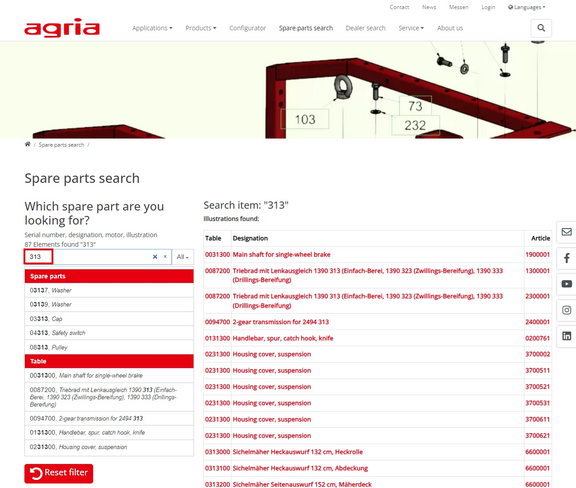
All spare parts are listed that contain a part of the article number entered in the search term. In the "Article" column, you can see in which articles the spare part number was installed.
Search by article name
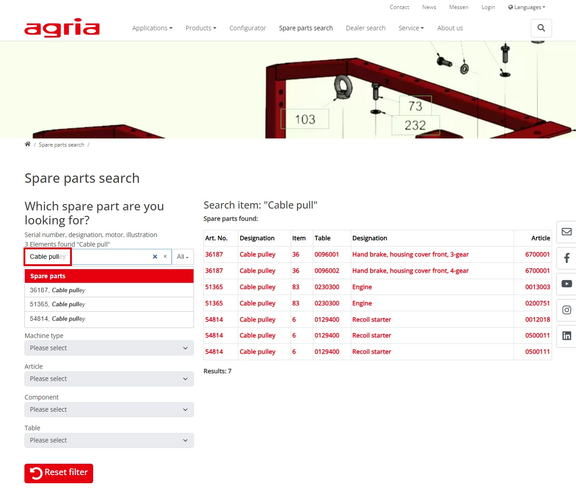
Search by engine number (from year of manufacture 2010)
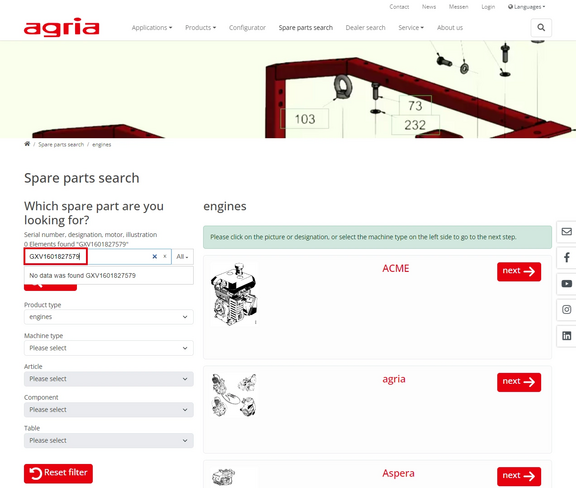
If your serial number is found, you will be taken directly to the correct item with your serial number and the appropriate parts lists will be filtered for you.
Search by panel number
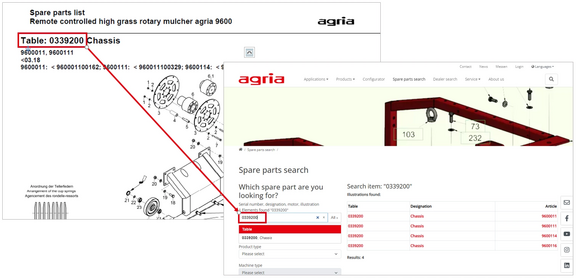
If you already have a printed Spare parts list, you can enter the sheet number in the search and you will find the current version directly.
Watch list

You can use the watch list symbol in the parts list to compile the items in a list for the next steps. Your order will be processed and shipped by the agria sales partner you have selected. They will then contact you and provide you with a quote for the selected items.
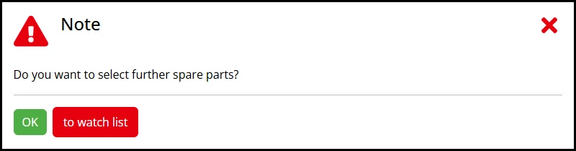
As soon as you add an item to the watch list, a message window appears. You can close this by clicking on the "X" in the above right-hand corner or by clicking on the "OK" button and continue searching for spare parts or click on the "Add to watchlist" button to jump directly to the watchlist.

As soon as you have added an item to the watch list, you will see another icon on all pages of the spare parts search with the number of items you have already selected. This icon takes you to the next step, where you can check your items again, change quantities or add items manually.
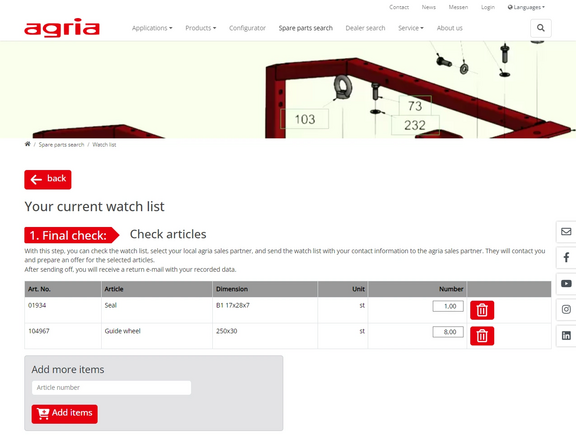
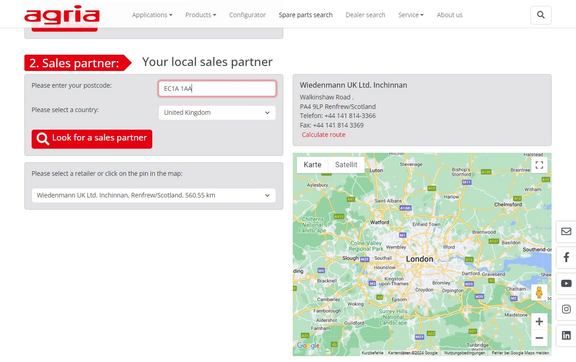
Next, enter your address or zip code and click on "Search sales partner".
Then select your nearest agria sales partner. You can either do this via the selection list or by clicking on the red pin on the map.
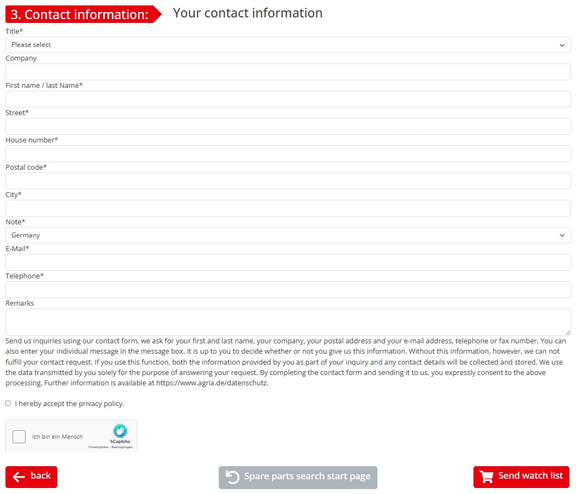
In the last step, please enter your contact details. Your selected agria sales partner will then contact you and provide you with a quote for the selected items. Then click on "Send configuration".
After submitting, you will receive an e-mail with the data you have entered.
Contact
If you have any questions, requests, suggestions or would simply like to provide feedback on our spare parts search, please contact
or use our contact form.
Your agria-online team!