

Product configurator guide: Step by step to your agria machine customized to your needs
Dear agria customer,
Welcome to the help page for the product configurator on agria.de.
Here you will find step-by-step instructions and useful tips on how to configure the agria machine that is right for you.
If you have any further questions, please contact our sales team using the contact form.
Thank you for choosing agria.
Operation and navigation
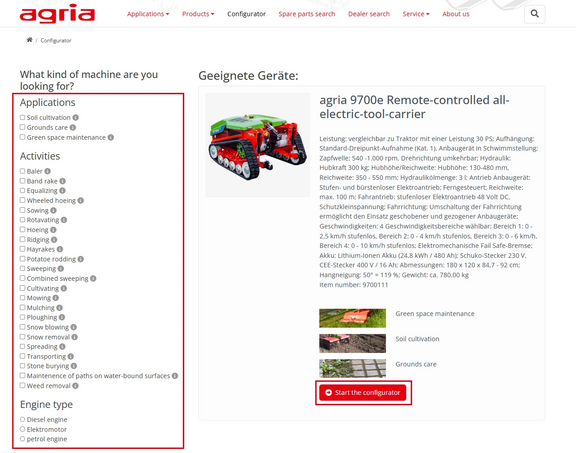
You can use the navigation bar to select the application options one after the other to display a selection of agria Basic equipment that meets your needs. To do this, click through the checkboxes from above to below.
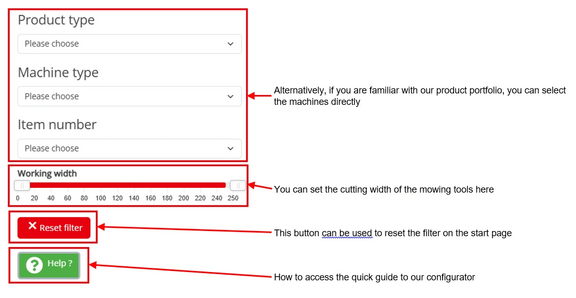
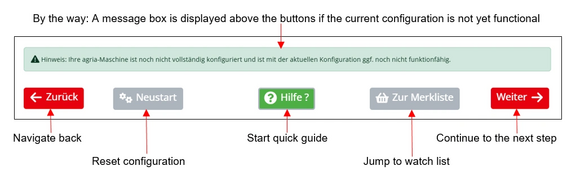
Using the button bar at the end of the configuration window, you can navigate forwards and backwards at any time, jump to the watch list and the quick guide and reset the configurator
Configuration of the Basic equipment
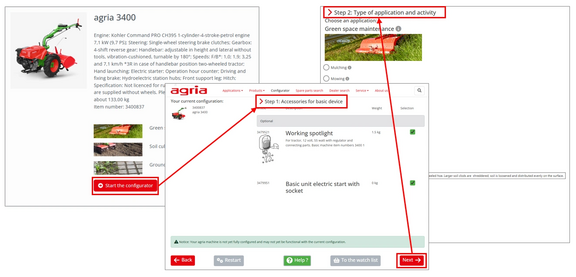
The configuration is divided into several steps. The number of configuration steps depends on the intended use of the Basic equipment and on the Basic equipment itself.
Once you have identified a suitable Basic equipment, click on Configurator under the desired Basic equipment. Then work through the next steps.
In step 1, select Accessories for your Basic equipment.
In step 2, select the type of application or activity with which you would like to use the Basic equipment, for example Mower, Harrow or Snow dozer.
Implements and Accessories
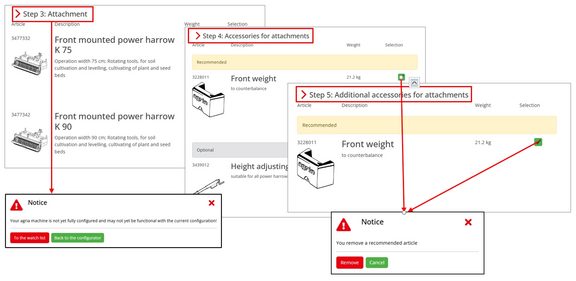
In step 3, select the Implement that matches the Basic equipment selected for you. If you click on Continue without having selected an Implement, a message will appear. This indicates that the machine is not fully configured and may not be functional in this state.
In steps 4 and 5, select Accessories for your Implement. Accessories may be recommended here. If you deselect this, a message will appear informing you that you are deselecting the recommended item.
Basic tires, multiple tires and accessories
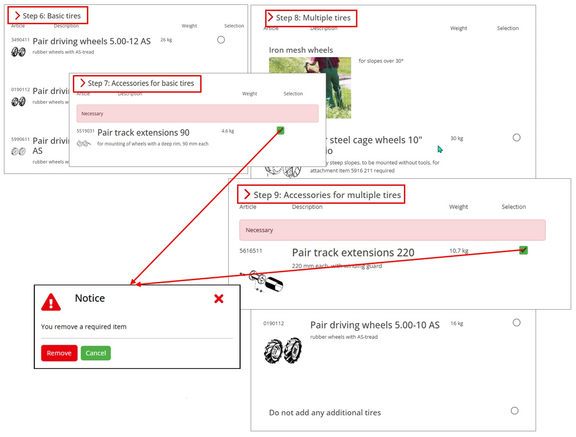
In step 6, select the basic machine tires that meet your requirements.
In step 7, you complete the desired basic tires with the appropriate accessories. Accessories may be required in order to use your machine. If you deselect the required accessories, a message appears. This informs you that you are removing a required accessory.
In step 8, you can select optional multiple tires such as Iron drive wheels.
And in step 9, select the desired accessories for the multiple tires. It is also possible that required accessories will be offered here. If you deselect this option, the message appears again.
Further options
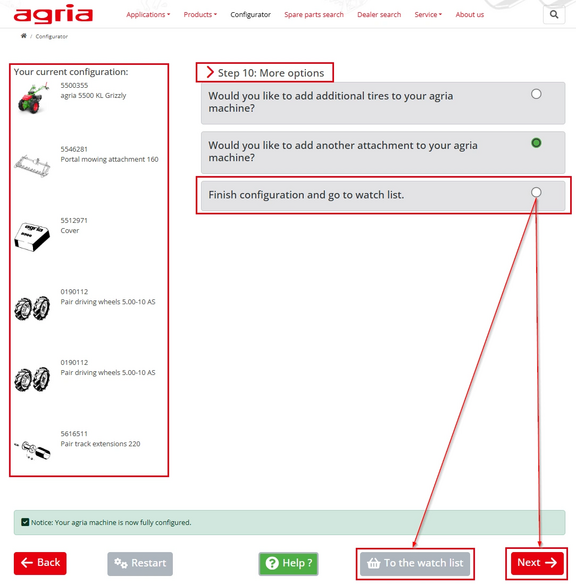
In step 10, you can choose between optional additional implements and accessories. When you have finished configuring your desired machine, please activate the checkbox next to "Exit configurator and go to watch list". Then click on "Next".
By the way: You can see your current configuration at every step on the left side of the configurator.
Final check of the watch list
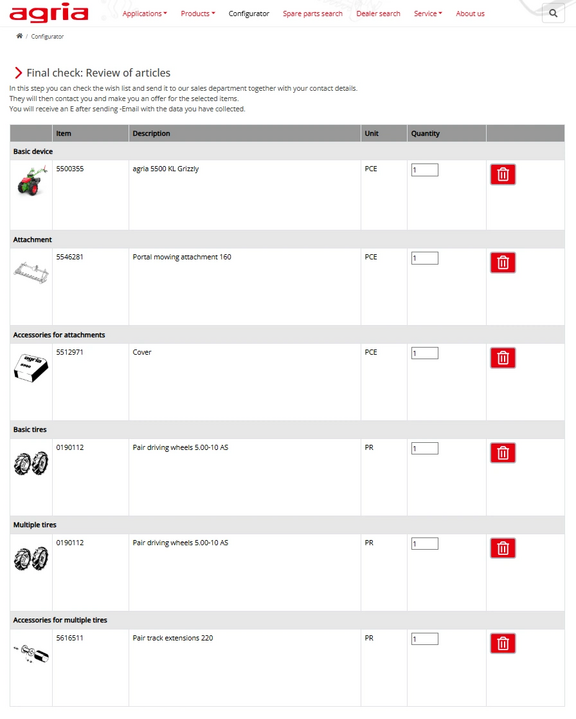
The watch list gives you a convenient overview of your desired configuration. Have you forgotten an accessory? No problem, use the "Back" button at the bottom of the page (after the contact form) to jump back to the configurator. The quantity of items can also be easily adjusted here. Superfluous or unwanted items can be removed here using the dustbin symbol.
Your contact details
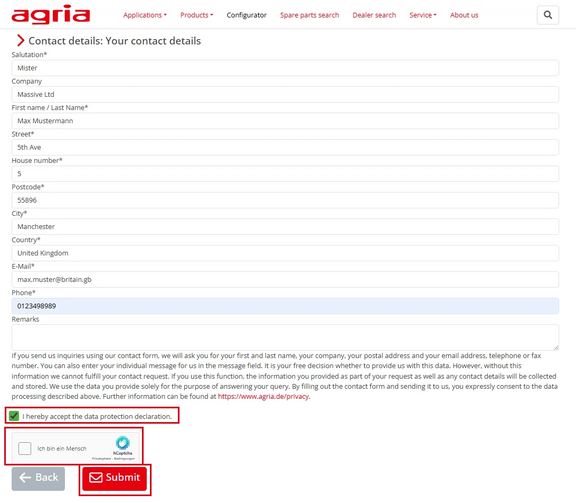
Your contact details will be processed by the dealer who is responsible for you. They will use this personal data to send you a customized offer for your new agria. All fields marked with "*" are mandatory.
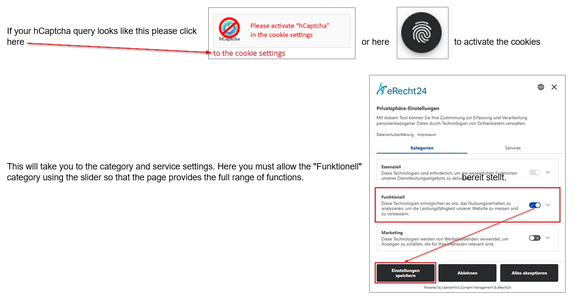
Please do not forget to check the data protection Hook and remember the hCaptcha query that verifies you as a person. Click on "Send" and an e-mail with the current configuration and the contact details provided will be sent to yourself and to the dealer responsible for you.
Contact
If you have any questions, requests, suggestions or would simply like to give feedback on our configurator, please use our contact form.
Your agria-online team!